


 It's a straight forward yet comprehensive spam filter for Outlook combining Bayesian filtering with smart white lists and works with all accounts...
Heinz Tschabitscher, E-mail Expert
 I'm very pleased with Spam Reader - it does a better job than built-in Outlook junk mail filter. I receive much spam and your product is a big help for me.
David Solomon, IT World Legend
The product is performing exceptionally well. The last update enhanced great features. Thanks for making a product that ably does what its creators say it will do.
Armand A. La Bes
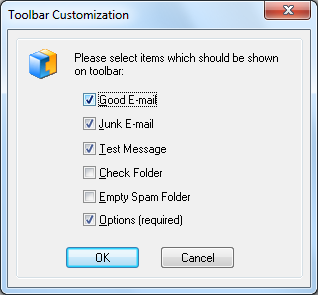
Spam Reader automatically adds its toolbar to standard Microsoft Outlook toolbars. Using Spam Reader toolbar buttons you can perform a number of program operations. You can add/remove the toolbar buttons using "Customize toolbar" command in Spam Reader menu.

Spam Reader toolbar buttons have the following functionalities.
Good E-Mail: The selected message will be used as an example of legitimate mai to update the database for Bayesian Filtering Algorithm. Spam Reader will also perform a number of operations customized by the user on General tab of program options.
Junk E-Mail: The selected message will be used as an example of junk mail to update the database for Bayesian Filtering Algorithm. Spam Reader will also perform a number of operations customized by the user on General tab of program options.
Test Message: Spam Reader will check if the selected message is spam. More details...
Check Folder: The current folder will be checked for spam messages. More details...
Empty Spam Folder: Spam Reader will empty the folder used for storing spam messages.
Options: Spam Reader Options window will appear where you can view and change Spam Reader program settings.
Registration: Spam Reader Registration dialog window will appear to start the registration procedure.
You can add/remove the toolbar buttons using "Customize toolbar" command in Spam Reader menu. In the displayed "Toolbar customization" dialog you can add/remove the toolbar buttons by marking the corresponding checkboxes.

 Free Version
